

Projects
A project groups related chats together with shared instructions and collaborators. This is useful for anything ongoing, like a campaign, a client, or a recurring workflow. Projects live inside a workspace and appear under Projects in the sidebar.
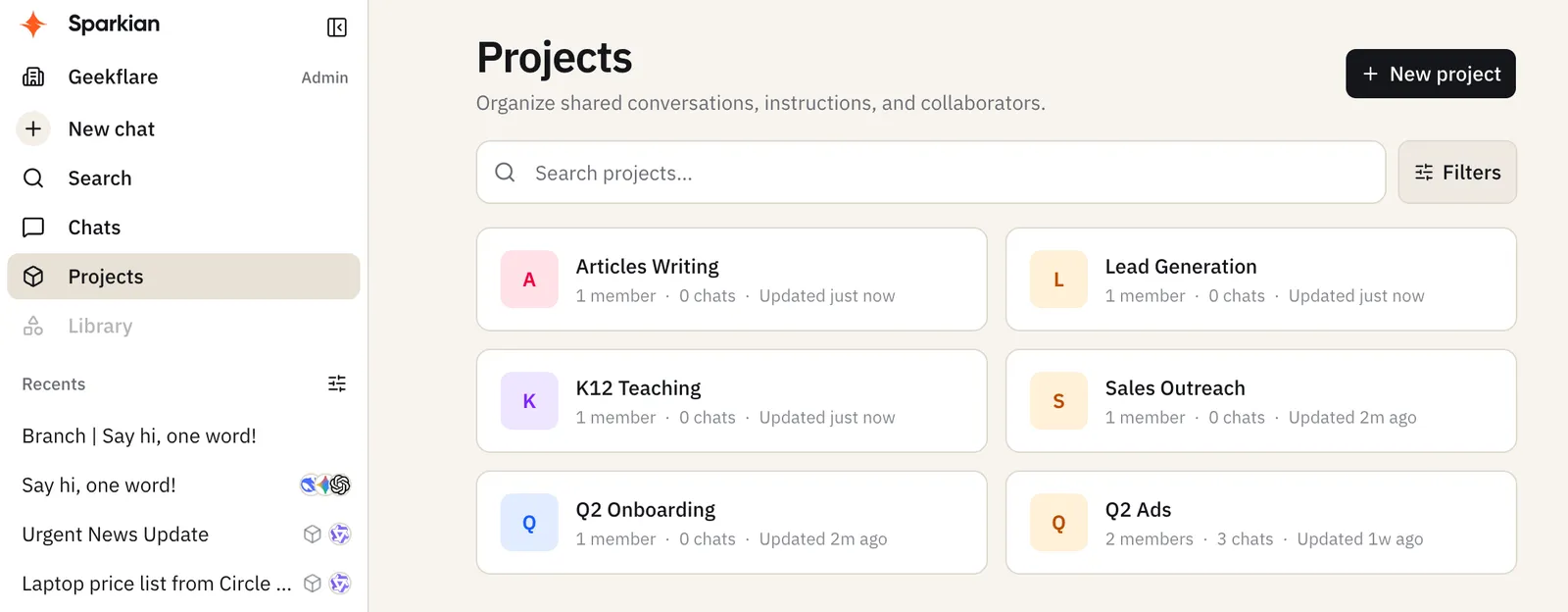
Creating a project
Click New project from the Projects page. Once created, a project has its own conversations, members, and settings.
Conversations
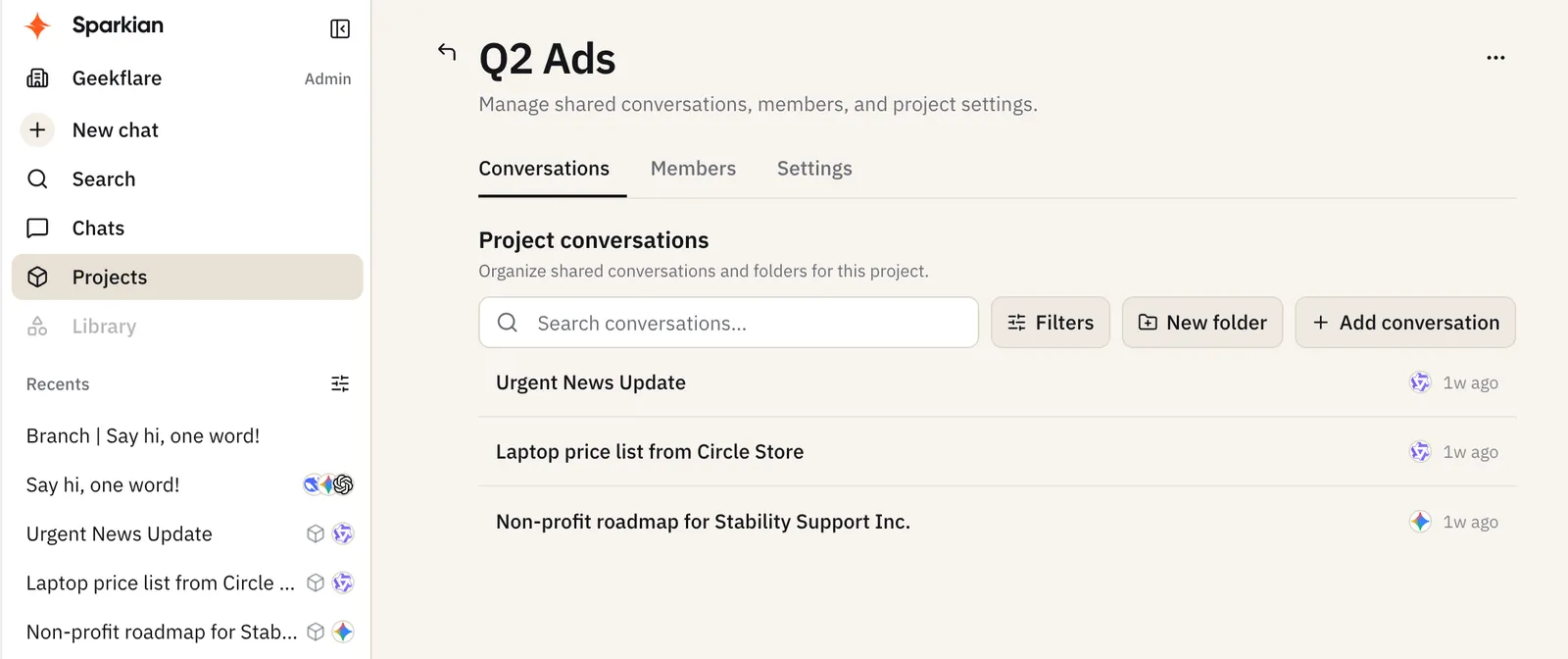
Chats started inside a project (or moved into one from Chats → Add to project) show up under its Conversations tab. You can organize them into folders and start new chats directly from the project’s chat input box.
Project conversations are collaborative in real time. When another member sends a message in a shared chat, it appears for everyone else viewing that conversation without needing to refresh the page.
Project instructions
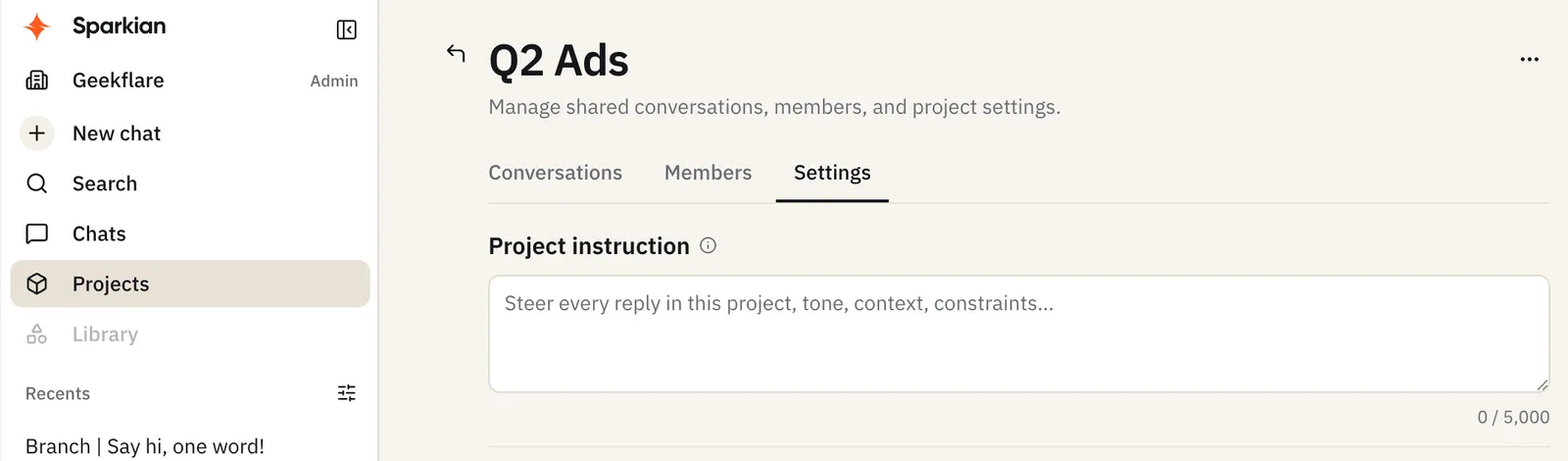
Under Settings, the Project instruction field up to 5,000 characters steers every reply in that project’s chats like tone, context, constraints, whatever should apply consistently across the project’s conversations.
Members and roles
Under the Members tab, click Add member and pick from people already in your workspace — invite them to the workspace first if they’re not listed yet. Project roles:
- Creator - the person who created the project
- Editor - can view and contribute to the project’s chats
- Viewer - can view the project’s chats
Deleting a project
Settings → Danger zone → Delete permanently removes the project. Conversations that were inside it return to creator-private access rather than being deleted.