

Workspaces
A workspace groups conversations, projects, members, and Sparks under one shared account. You always have a personal workspace, and you can create or be invited to team workspaces, for example, a company account shared with coworkers.
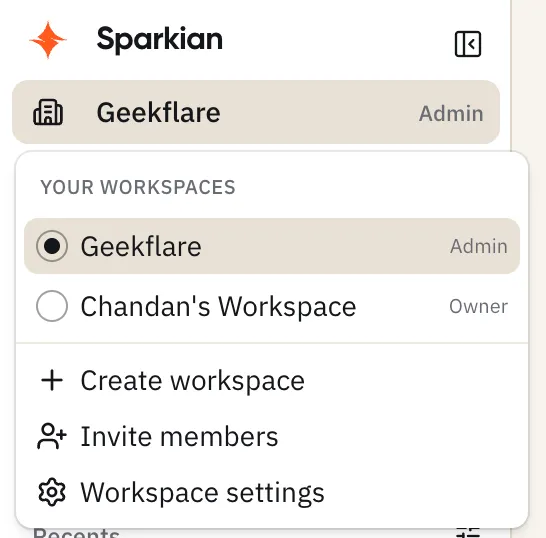
Switching workspaces
Click your current workspace name at the top of the sidebar to see every workspace you belong to and switch between them. From the same menu you can create a new workspace, invite members, or open workspace settings.
Roles
Workspace members have one of three roles:
- Owner - full control, including billing and deleting the workspace
- Admin - manage members and settings, but can’t delete the workspace
- Member - chat and use shared projects, no settings access
Inviting members
From the workspace menu (or Workspace settings → Members), click Invite members. Enter one or more email addresses (comma-separated) and pick the role to assign, access begins once the invite is accepted.
Workspace admins can invite members but can’t grant the Admin role themselves — only an Owner can do that.
Workspace settings
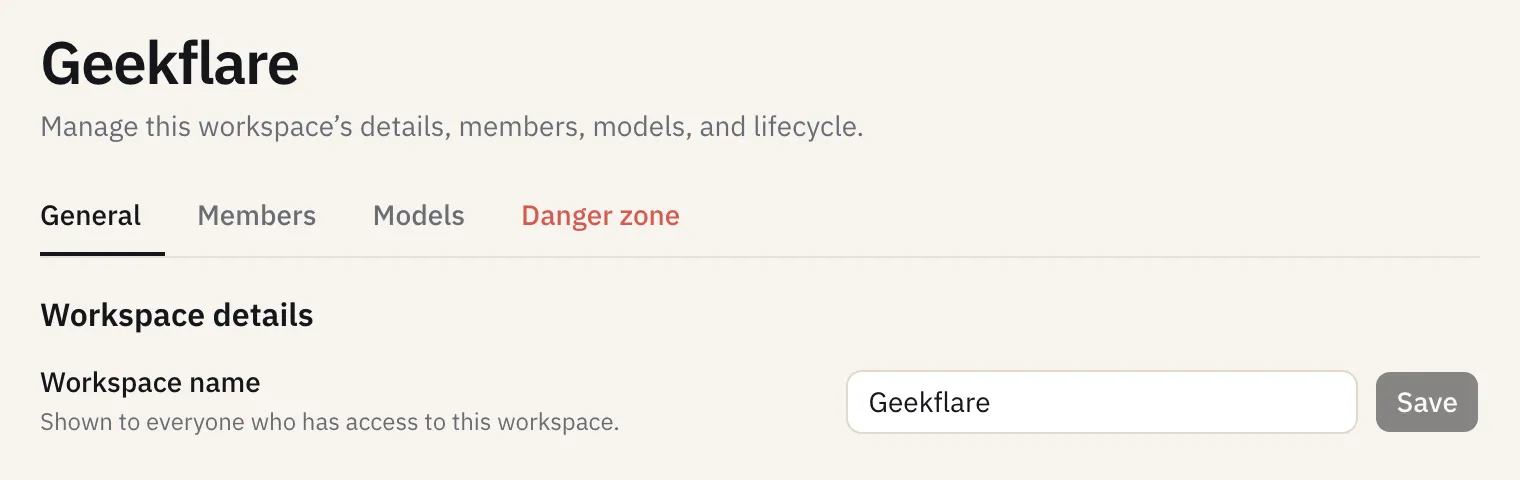
- General - rename the workspace
- Members - manage who has access and their role
- Models - set workspace-wide model defaults:
- Default model - used when someone starts a new single-model chat
- Comparison models - the models preselected when multi-model chat is turned on (up to 5)
- Danger zone - delete the workspace
Model access and Spark costs are shared across everyone in a workspace. See Sparks (credit system) for how usage is priced.