
Image studio
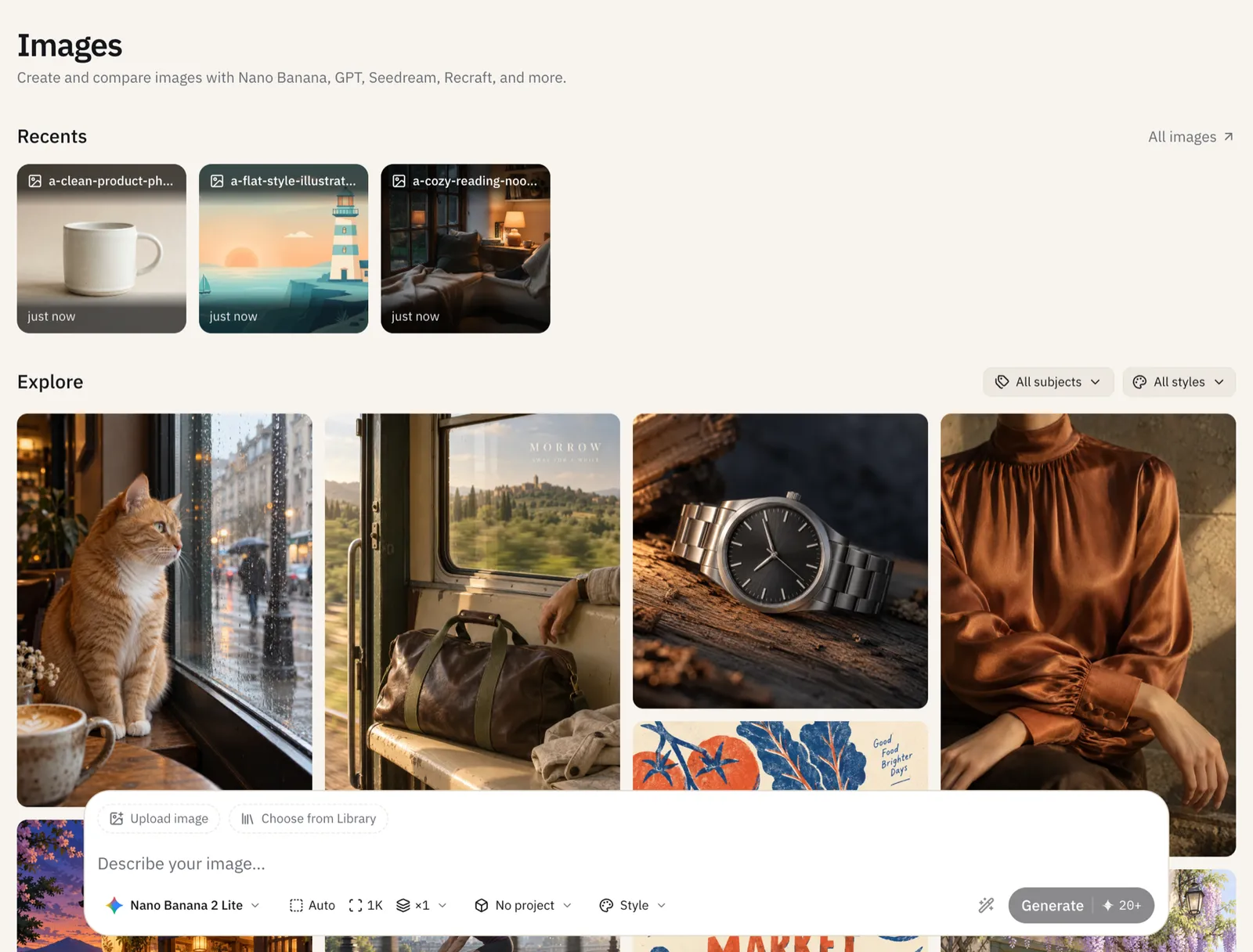
The Image studio is a dedicated page for generating images, separate from chat. Open Images from the sidebar, or go to sparkian.com/ai-image. You can create and compare images across models from providers like Nano Banana, GPT, Seedream, and Recraft.
If you’d rather generate an image in the middle of a conversation, see Creating images.
Generating an image
Describe the image in the box at the bottom of the page, choose your options, and click Generate. Sparkian shows an estimated Spark cost on the button and in the settings popover. The final cost can vary, see Sparks (credit system).
- Model — pick any image model from the model picker. Turn on Compare models to select several and generate with each, so you can see how they differ.
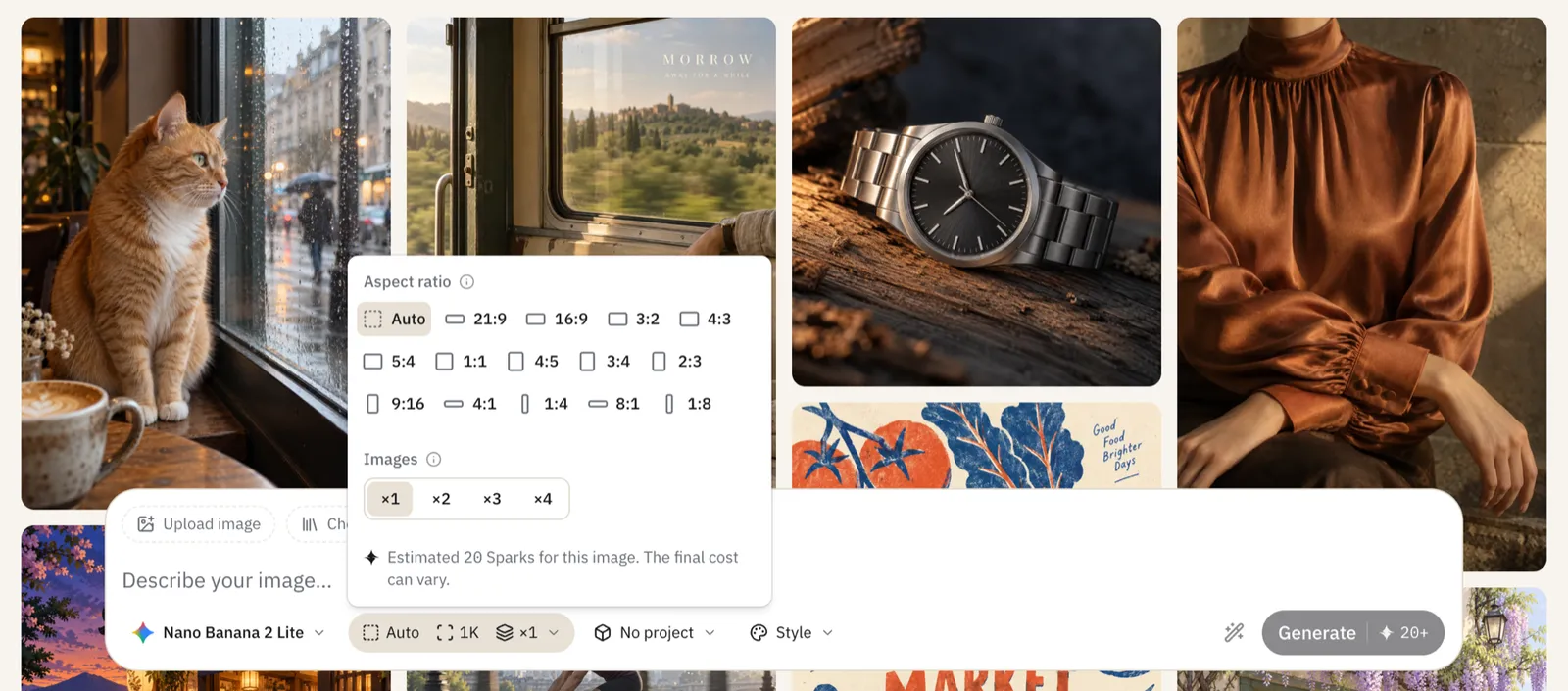
- Aspect ratio — Auto, or a fixed ratio from 21:9 and 16:9 through 1:1 to 9:16 and 1:8
- Images — generate 1 to 4 at once
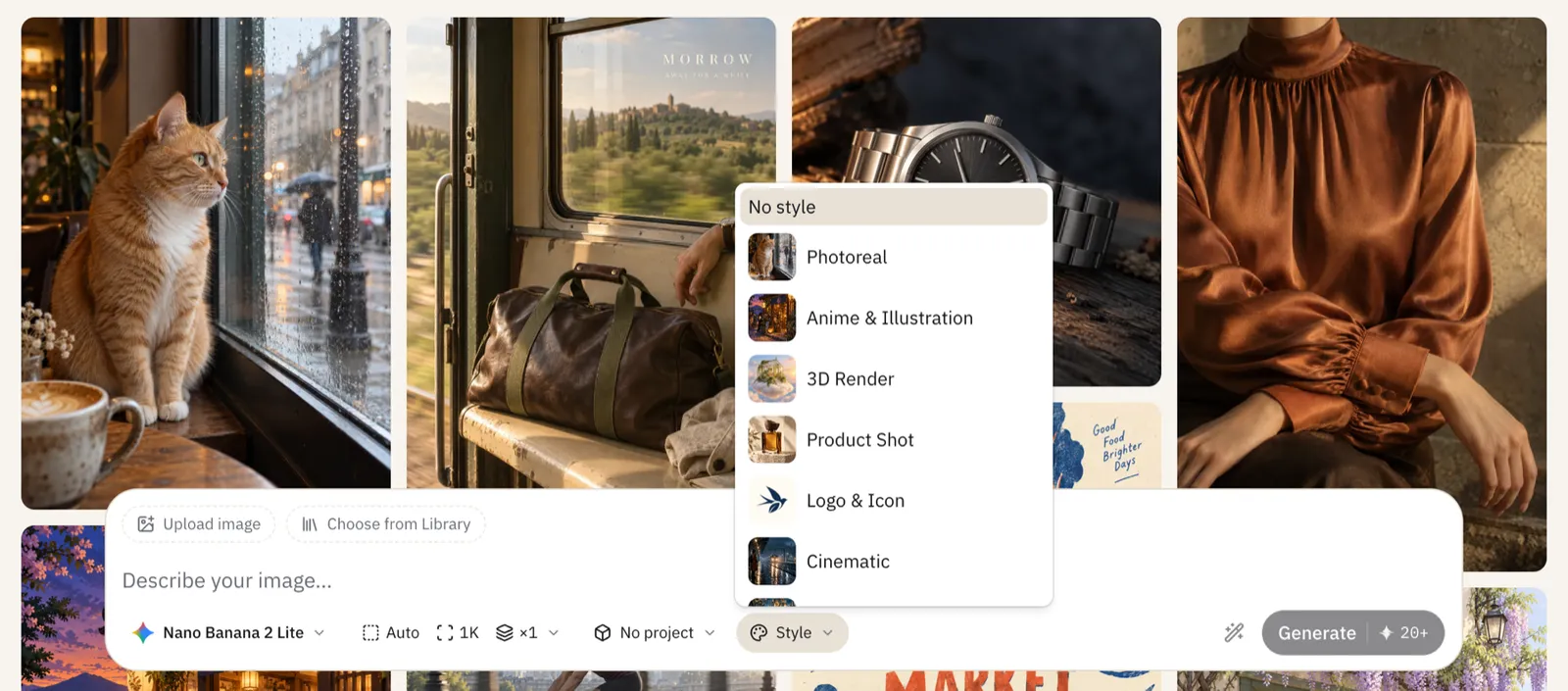
- Style — No style, Photoreal, Anime & Illustration, 3D Render, Product Shot, Logo & Icon, Cinematic, or Digital Art
- Project — save the image to one of your projects
- Enhance image prompt — the wand icon, an image counterpart to the Prompt enhancer
To start from an existing picture, click Upload image or Choose from Library.
Your results
Generated images appear on the same page and in Recents.
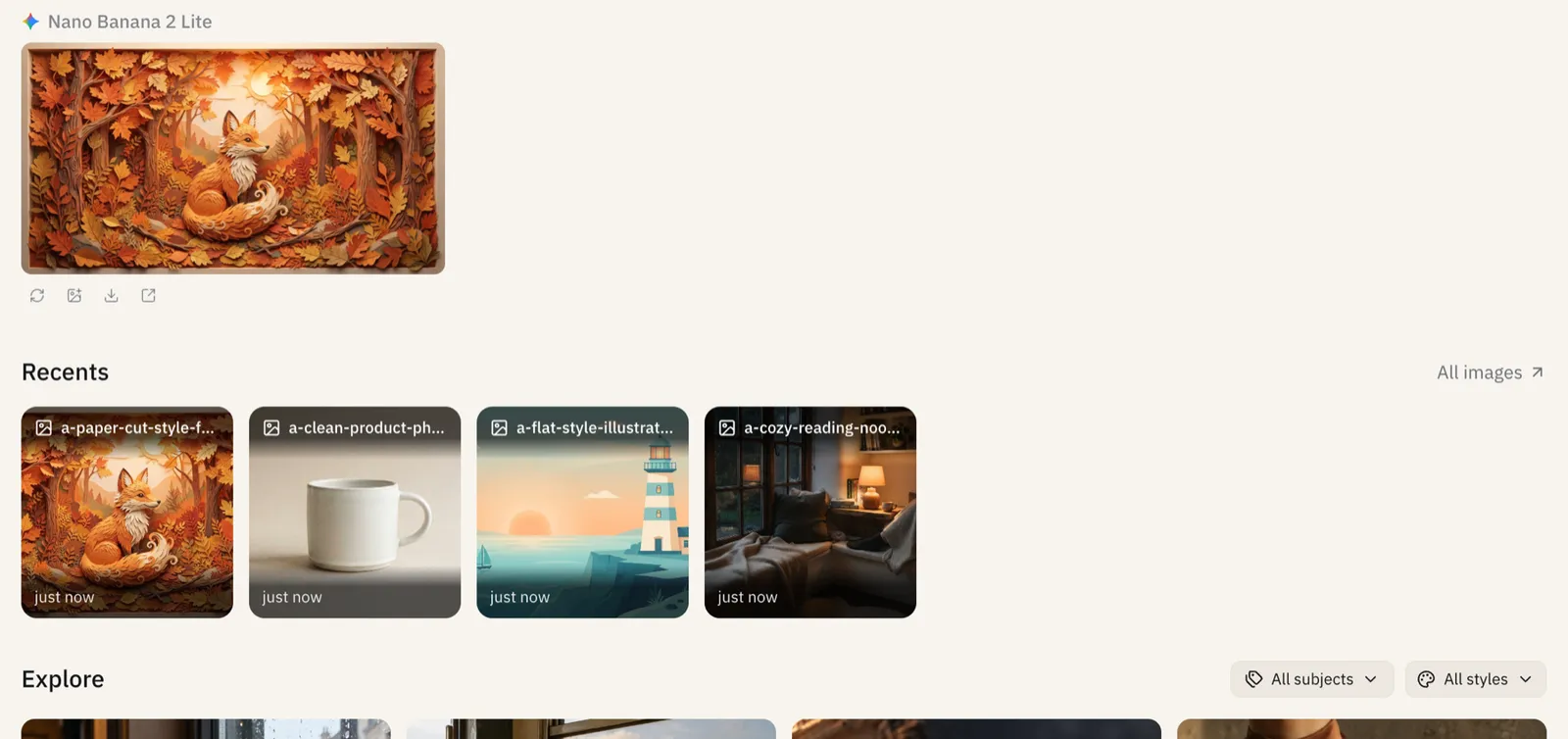
Each image has these actions:
- Regenerate — run the same prompt again
- Use as reference — start a new generation based on this image
- Download
- Open in a new tab
- View fullscreen
- Delete — removes the image from Recents, your Library, and its project. You’ll be asked to confirm.
Click All images to see everything you’ve generated. Images are also saved to the Images tab of your Library.
Explore
Below the composer, Explore is a gallery of example images. Filter it by subject and style for inspiration.